Context menus
XenoAtom.Terminal.UI supports context menus (right-click menus) in fullscreen applications.
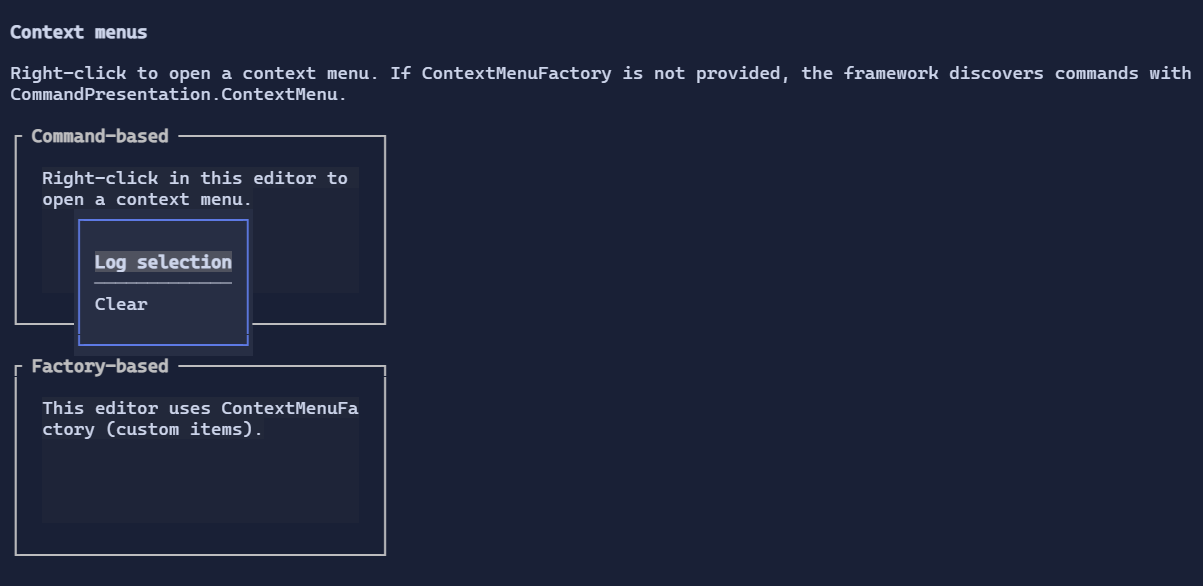
Fullscreen-only
Context menus are implemented using the window/popup system and require a fullscreen Terminal.Run(...) app.
They are not available in inline scenarios (for example Terminal.Live(...)).
Default behavior (command-driven)
If no custom factory is provided, right-click builds a context menu from the unified command system:
- Local commands registered on the hovered visual and its ancestors
- Global commands registered on the running
TerminalApp - Filtered to
CommandPresentation.ContextMenu
This makes context menus easy to add to any control:
using XenoAtom.Terminal.UI.Commands;
using XenoAtom.Terminal.UI.Input;

textArea.AddCommand(new Command
{
    Id = "Editor.Find",
    LabelMarkup = "Find",
    Gesture = new KeyGesture(TerminalChar.CtrlF, TerminalModifiers.Ctrl),
    Presentation = CommandPresentation.CommandPalette | CommandPresentation.ContextMenu,
    Execute = _ => { /* ... */ },
});
Custom menus with ContextMenuFactory
To fully control the context menu items for a subtree, set Visual.ContextMenuFactory.
The nearest factory in the hovered visual chain wins:
using XenoAtom.Terminal.UI.Controls;

editor.ContextMenuFactory = _ => new[]
{
    new MenuItem("Copy", () => { /* ... */ }),
    MenuItem.Separator(),
    new MenuItem("Clear", () => editor.Text = string.Empty),
};
Programmatic menus
You can open a context menu programmatically (fullscreen only) using ContextMenuService:
using XenoAtom.Terminal.UI.Controls;

ContextMenuService.Show(target, items, uiX: 10, uiY: 5);
This is useful when building custom interactions (for example a toolbar button that opens a menu).
Defaults
- Default alignment:
HorizontalAlignment = Align.Start,VerticalAlignment = Align.Start